Setup
Installation Guide for Iuncta Value
Important: Enable Pop-Ups for Successful Installation
When installing the Iuncta Value app from the Shopify App Store, your browser must allow pop-ups in order to complete the installation process. If pop-ups are blocked, the installation may not finish successfully.
Before You Install
Please make sure pop-ups are enabled for your Shopify store and admin pages.
- Check that your browser allows pop-ups for Shopify domains
- Disable any pop-up blocker extensions temporarily
- Ensure you are logged into your Shopify admin
Steps to Activate the Iuncta Value Widget on the Shopify Store
Step 1: Install the App
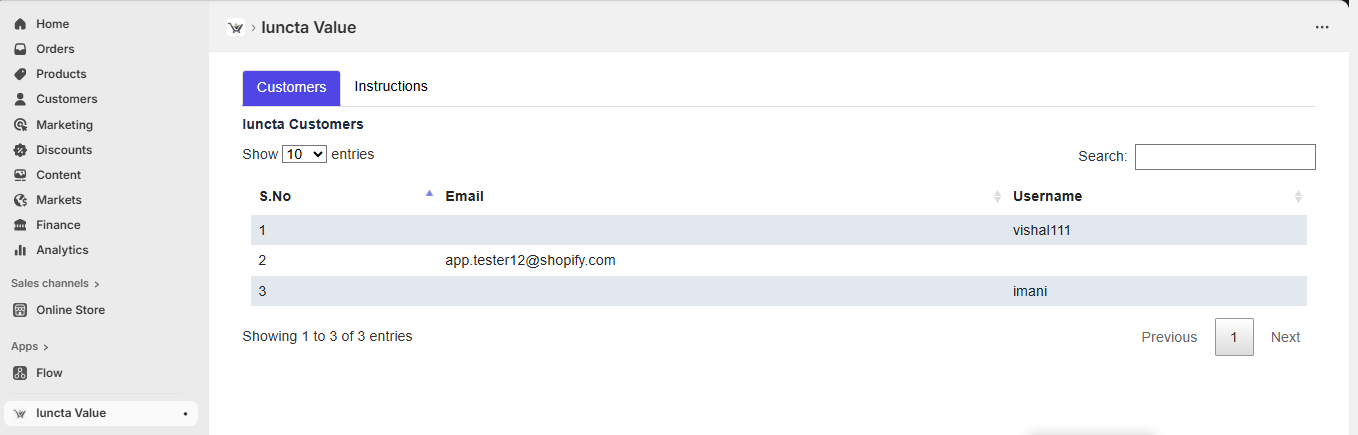
Install the Iuncta Value App from the Shopify App Store. After successful install the app will appear under the Apps section in the left menu and default to the Customer details page.

Step 2: Navigate to Themes
In the left menu under the Sales channels section, locate and select Online Store. It should default to the Themes menu item. Locate and click the Edit Themes button in the main section of the page.
Step 3: Enable App Embeds
In the left menu locate the App Embeds icon and select. Locate the Iuncta Discount and Iuncta Discount Drawer widgets and enable both by toggling the slider.
Step 4: Save Settings
Click the Save button in the top right corner of the page to save the settings. The changes have not completely saved until the save button is no longer active.
Step 5: Verification
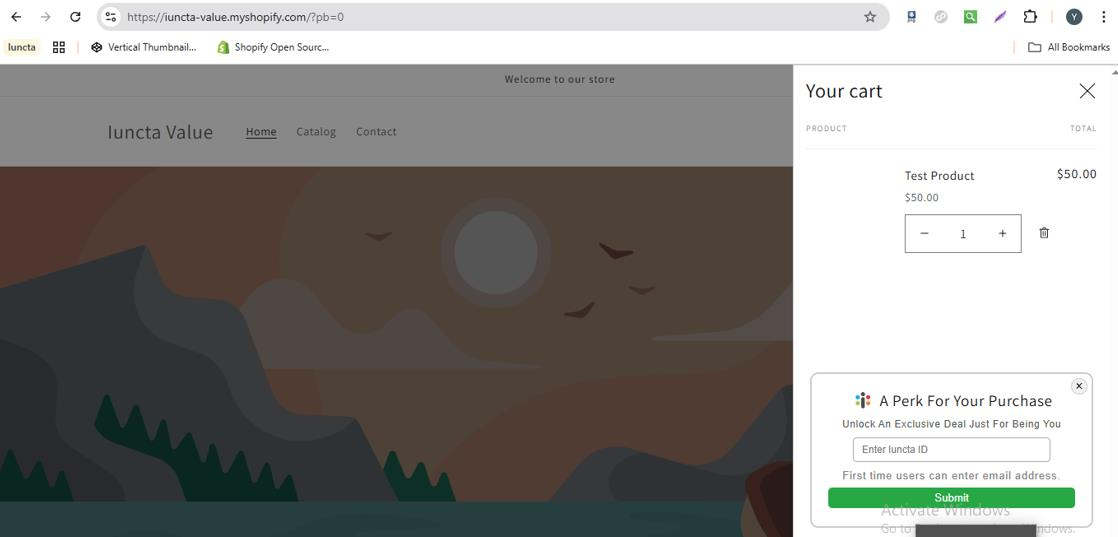
After successfully saving the settings, the discount widget displays in the Cart drawer and the cart page as shown in the images.
Cart Page:
Cart Drawer:
If Installation Does Not Complete
- Check your browser's address bar for a blocked pop-up icon
- Click it and select "Always allow pop-ups for this site"
- Refresh the page and restart the installation
Common Browsers
Here's how to enable pop-ups in the most popular browsers:
Chrome
Settings → Privacy & Security → Site Settings → Pop-ups and redirects → Allow
Safari (Mac)
Settings → Websites → Pop-up Windows → Allow for Shopify
Firefox
Click the pop-up blocked icon in the address bar → Allow
Reminder
If pop-ups are not disabled, be sure to allow pop-ups for your Shopify site to ensure a complete and successful installation.
Need Help?
If you're still experiencing issues with installation, our support team is here to help.
Contact Support